How to Check the Health of an Ssd 2026: Worth Your Money
Your SSD is the engine powering your computer's speed, so knowing its health is key to avoiding frustrating slowdowns or data loss. While modern Solid State Drives (SSDs) are incredibly reliable, they aren't immortal. Understanding how to check your SSD's health means you can get ahead of potential issues before they cause real problems.
Manufacturer specifications indicate that SSDs have an expected lifespan based on how much data is written to them, often measured in Terabytes Written (TBW). As of 2026, keeping an eye on these drives is critical for maintaining peak performance and data safety.
Why Checking Your SSD Health Matters
This is where you want to be proactive. A healthy SSD means your computer boots faster, applications load quickly, and you don't have to worry about unexpected data corruption. Ignoring subtle signs of an aging drive is like ignoring a check engine light in your car, it could lead to a breakdown that's far more costly and inconvenient than a simple check-up.
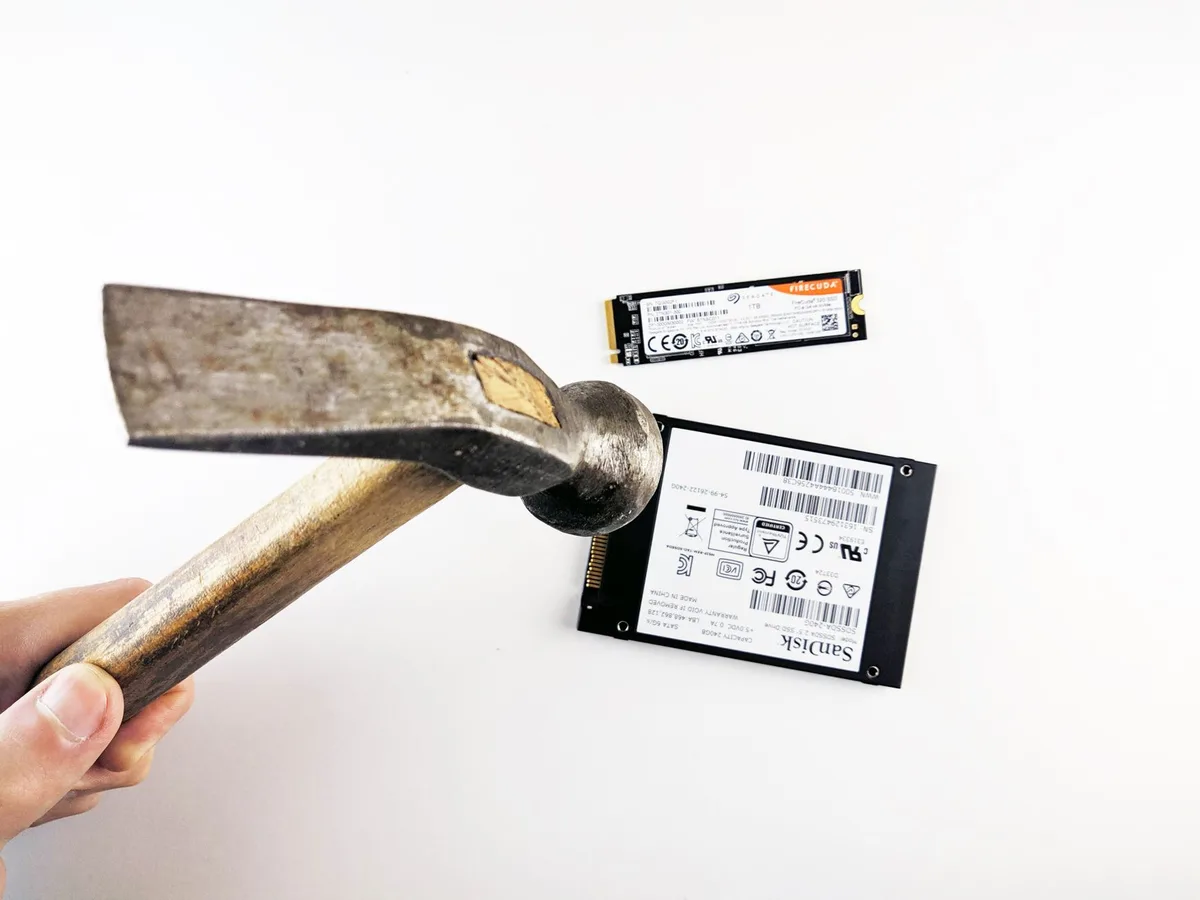
The consequences of an undetected SSD failure can range from minor annoyances like slow loading times to the complete loss of critical files, which can be incredibly disruptive. Regular checks are a small investment of time for significant peace of mind.
How to Check Your SSD's SMART Status
SMART, which stands for Self-Monitoring, Analysis, and Reporting Technology, is your drive's built-in diagnostic system. It continuously monitors various attributes and flags any anomalies that could indicate an impending issue. Think of it as your SSD's personal doctor, constantly taking its vital signs.
Many SSDs report a basic "OK" status, but for a deeper dive, you'll want to use specific tools. Most operating systems and drive manufacturers provide ways to access this information.
Checking SMART on Windows
On Windows, you can get a quick status check using the Command Prompt. Open it by searching "cmd" in the Windows search bar and hitting Enter. Then, type wmic diskdrive get status and press Enter. If your drive is healthy, you'll see "OK" displayed.
For more detailed insights, your SSD manufacturer likely offers free software. For instance, Samsung's Magician software, Crucial's Storage Executive, or Western Digital's Dashboard provide a user-friendly interface to view detailed SMART attributes, check firmware versions, and run diagnostic tests. You'll usually find this software by searching for "[Your SSD Brand] SSD software."
Checking SMART on macOS
macOS has a built-in tool called "Disk Utility," found in your Applications > Utilities folder. When you select your SSD from the sidebar, look for the "SMART Status" at the bottom of the window. It should say "Verified" for a healthy drive.
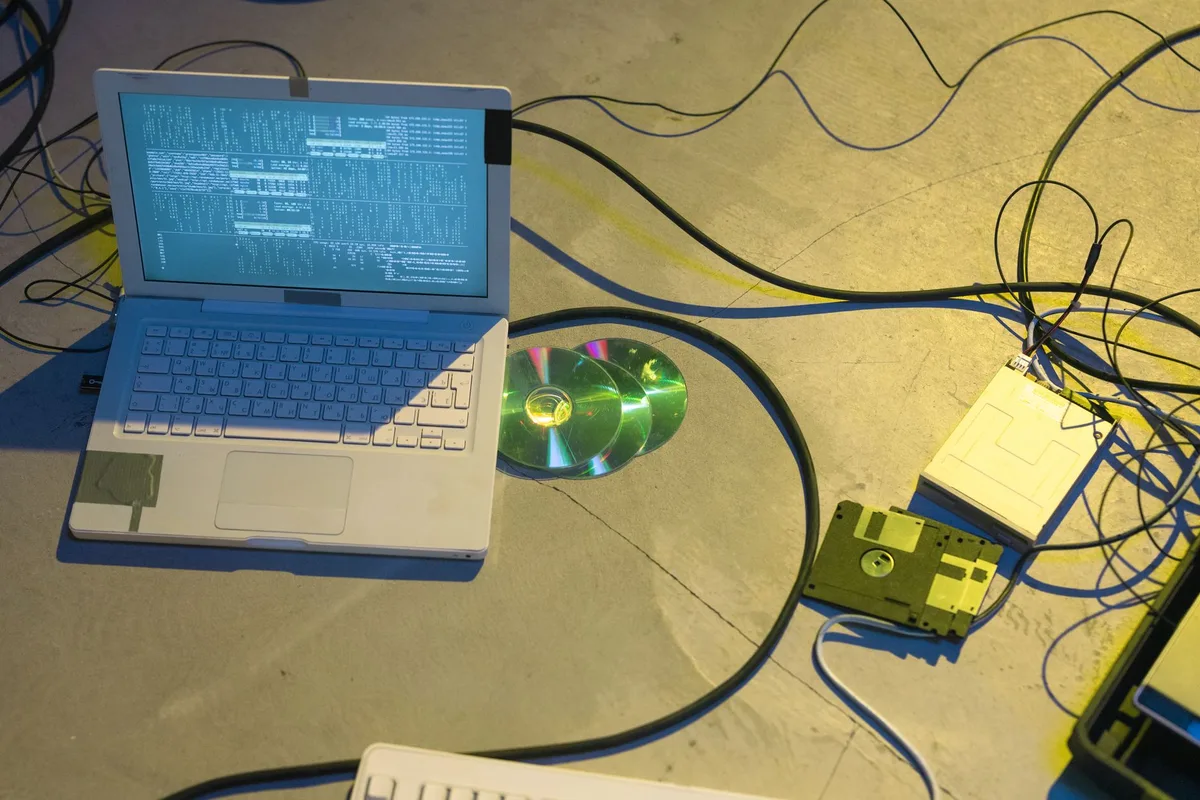
Key SMART attributes to watch for in more advanced tools include "Reallocated Sectors Count" (a rising number here is a warning), "Wear Leveling Count," and "Total Host Writes." These metrics give you a clearer picture of your SSD's usage and remaining lifespan.
Running a Manufacturer's Drive Health Scan
Beyond just reading SMART data, most SSD manufacturers provide dedicated software that includes more thorough health scans. These aren't just passive checks; they actively test the drive's read and write capabilities across its surface.
To perform this, first download and install the specific utility for your SSD brand. Once installed, open the program and look for an option labeled "Health Scan," "Diagnostic Scan," or similar. Follow the on-screen instructions, as some scans might require the system to be idle, while others can run in the background.
What to Look For in Scan Results
These scans typically provide an overall health score, often expressed as a percentage, or a clear "Pass" or "Fail" indication. If the scan reports any errors, or if the health score is significantly low, it's a strong signal that your SSD may be failing. It's also wise to keep your drive's firmware updated, as manufacturers sometimes release updates that can improve stability and performance. Keeping your computer's operating system updated is also a good practice for overall system health.
Monitoring Your SSD's Temperature
SSDs, like most electronic components, perform best within a certain temperature range. Excessive heat can accelerate wear and potentially lead to performance degradation or even premature failure. It's a factor often overlooked, but crucial for long-term health.
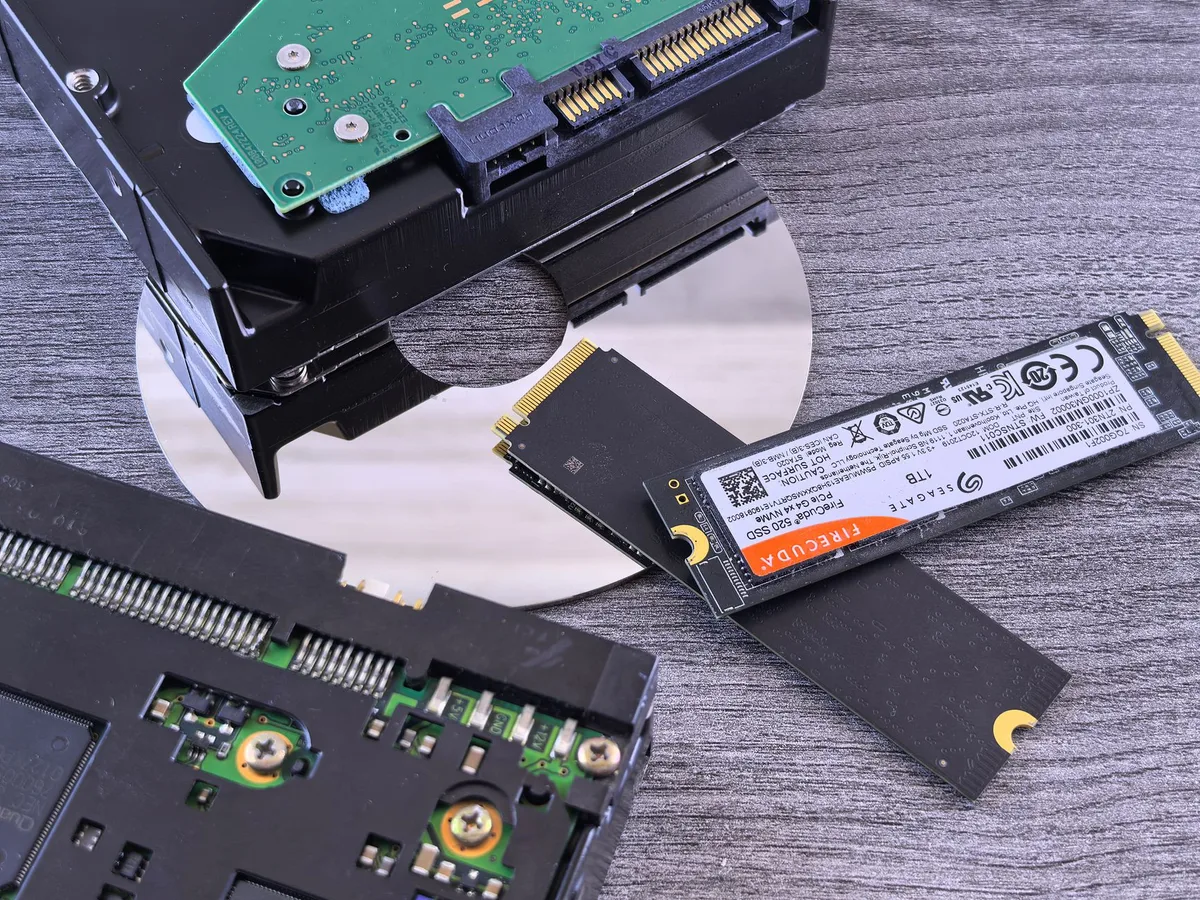
Most manufacturer diagnostic tools will display your SSD's current temperature. Typically, most consumer SSDs operate safely between 25°C (77°F) and 50°C (122°F). If you notice your SSD consistently running above 60°C (140°F), especially during normal use, it's worth investigating your computer's cooling system. Poor airflow or dust buildup can contribute significantly to these elevated temperatures.
Unusual Signs: What to Listen For (and What It Means)
This is a quick one: SSDs have no moving parts. Unlike traditional Hard Disk Drives (HDDs) with their spinning platters and actuator arms, you should never hear any mechanical noise from your SSD.
If you start hearing clicking, grinding, or any other unusual sounds emanating from your computer, particularly from the area where the SSD is located, that's a significant red flag. This noise is generally indicative of a mechanical failure, something an SSD should inherently avoid. If you detect such sounds, power down your system immediately and prioritize backing up any accessible data.
When to Worry: Interpreting the Signs of Trouble
If your SMART status isn't "OK" or shows concerning numbers, that's your first big sign to pay attention. Aggregate user reviews indicate that a steadily increasing "Reallocated Sectors Count" is a classic indicator of an SSD nearing its end. You might also see unusually high "Percentage Used" or "Power On Hours" that seem excessive for the drive's age.
Persistent high temperatures, as discussed earlier, are another strong indicator. If your drive reports being over 60°C consistently, something is wrong, and it's impacting longevity. Coupled with actual performance issues, like your computer freezing, programs crashing, or files corrupting, these symptoms paint a clear picture of a drive that needs immediate attention.
What to Do If Your SSD Shows Signs of Failure
If you've identified one or more warning signs, don't delay. The absolute priority is to back up your important data. Imagine losing all your photos, work documents, or system files; that’s the worst-case scenario an unhealthy SSD can bring.
Think of this as an emergency procedure. You need to ensure your valuable information is safe on a separate device or cloud service before the drive potentially fails completely.
Your Immediate Backup Plan
Use an external hard drive, a USB flash drive, or a cloud storage service to copy your most critical files. Prioritize personal documents, photos, important project files, and anything that would be difficult or impossible to replace. If your system is slow, consider backing up files individually rather than attempting a full system image if time is critical.
For situations where the drive is still somewhat accessible but very slow, you might look into specialized cloning software. However, if there are any signs of data corruption, prioritize copying individual files rather than risking further damage to the drive or your data.
Warranty and Replacement Options
Once your data is secured, check your SSD's warranty status. Most manufacturers offer warranties of 3 to 5 years for their SSDs. If your drive is covered and diagnostics clearly show it's failing, you can likely initiate a warranty claim.
You'll typically need your proof of purchase to start the process. Visit your SSD manufacturer's official website for their specific warranty claim instructions, which usually involve filling out a form and sometimes shipping the drive back for evaluation. Having your data backed up is crucial here, as you'll be without your primary drive during the replacement process. If your warranty has expired, it's time to shop for a new SSD.